Stellar Window Data Recovery Services for Windows Systems
The ClipsTrust team, after their study, is aware of the exceptional nature of your data. Losing essential files like photos of good times, important work documents, or personal videos can be very nerve-wracking and annoying.
However, the nice thing is that, in most cases, files that have been “permanently” deleted can still be found on the hard drive until the space they occupied is fully replaced with new data by the operating system.
Stellar Windows data Recovery is a dual option provided to you. It is a simple yet powerful one through which files that you presumed were gone forever can be brought back to life.
Regardless of emptying the Recycle Bin or using the Shift + Delete command, Stellar will get your drive scanned at a very deep level right down to the raw disk sectors during this critical window of time so that documents, photos, and videos, etc., can be recovered quickly and effectively.
What Makes Files to Be Deleted Forever?
Windows, when you run the Delete File Permanently command or empty the Recycle Bin, just deletes the pointer to that file and assigns the space on the disk for writing new data. Recovery software can still access the file up to the point where new data is not written yet.
With old-style hard disk drives (HDDs), the recovery period can last from hours to days, depending on the usage of the drive.
With solid-state drives (SSDs), the TRIM command can lead to the perceived instant deletion, which means that speed is crucial if you plan to recover something.
For robust backup solutions, consider evaluating the best backup software for Windows PC to prevent future data loss.
When do we need Stellar windows data recovery software?
There are many justifications for the necessity of stellar window data recovery software include:
No Backup Accessible
Shift + Delete used or Recycle Bin emptied
File Structure Corrupted or Disk Errors
Data Lost After Formatting
Photos or Videos Cannot Be Played After Recovery
After a system crash or Windows OS failure
If file access is blocked due to drive bad sectors
When file access is obstructed due to RAW or unallocated drives
If you’re also managing emails, check out our guide on the best email backup tools for seamless mailbox protection.
How Can You Get Stellar Windows Data Recovery Software?
The steps for getting stellar windows data recovery software are given below:
Step 1: By downloading and installing Stellar Windows Data Recovery then locating the application's location to be able to recover later on if such is the case the data deletion occurred accidentally.
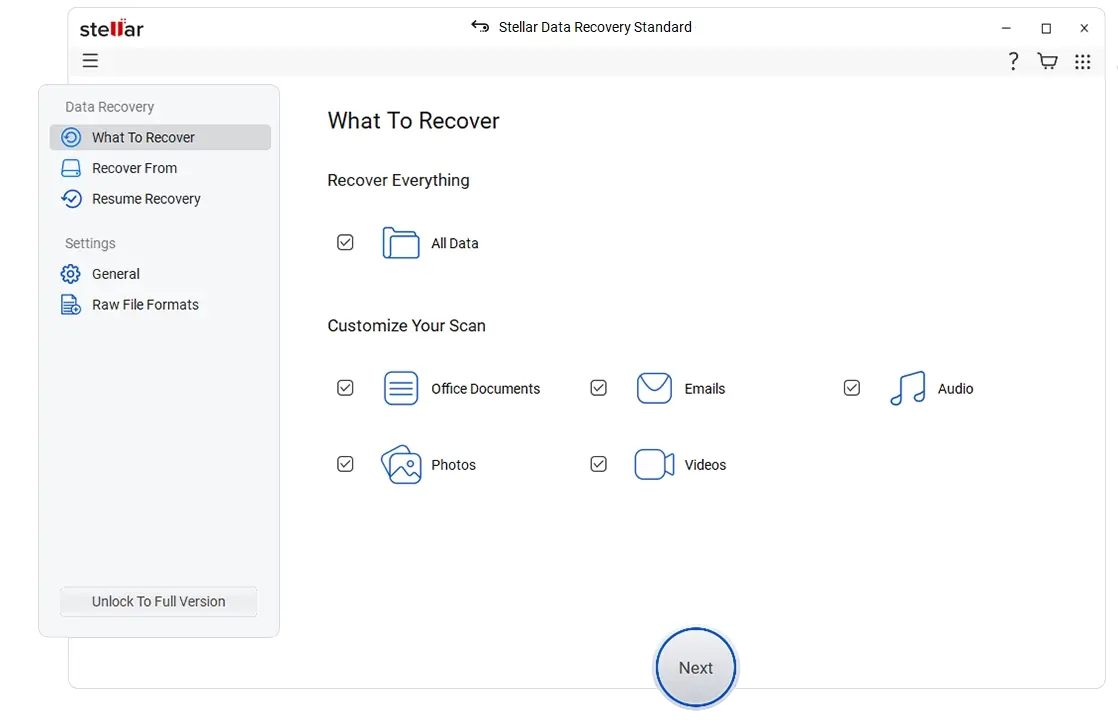
Step 2: Start the software and pick the type of files you want back like papers, images, and movies.
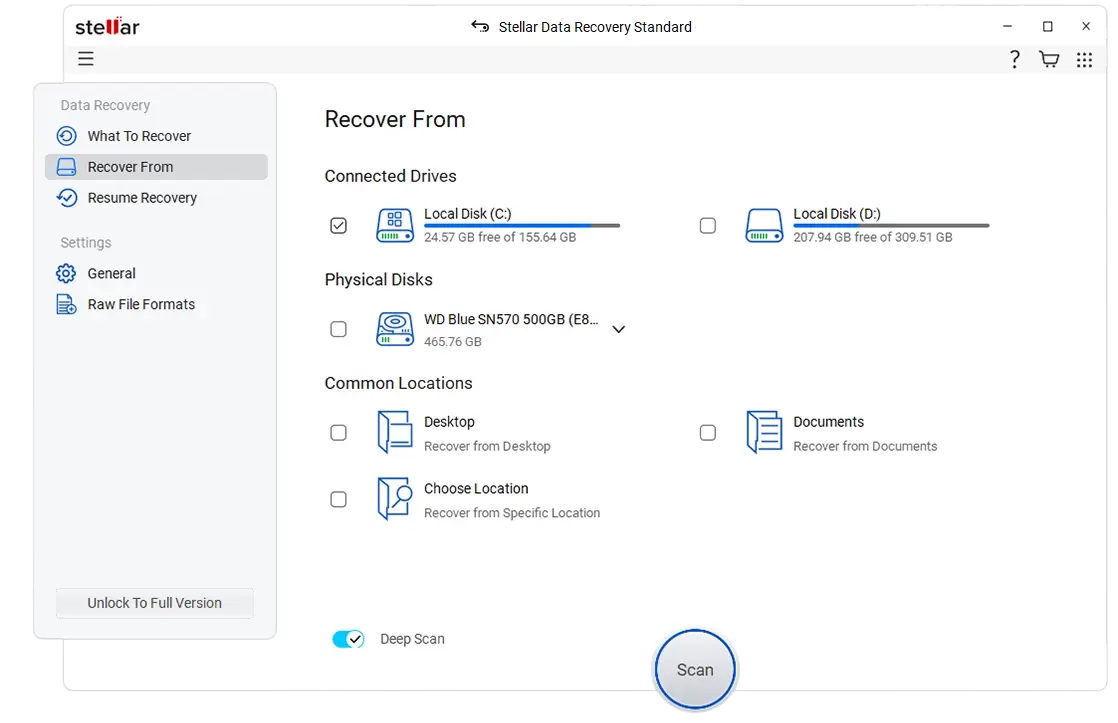
Step 3: Find the hard drive or partition where the lost files used to be.
Step 4: Press 'Scan' to initiate the fast scan; if needed, change to 'Deep Scan' for a complete recovery.
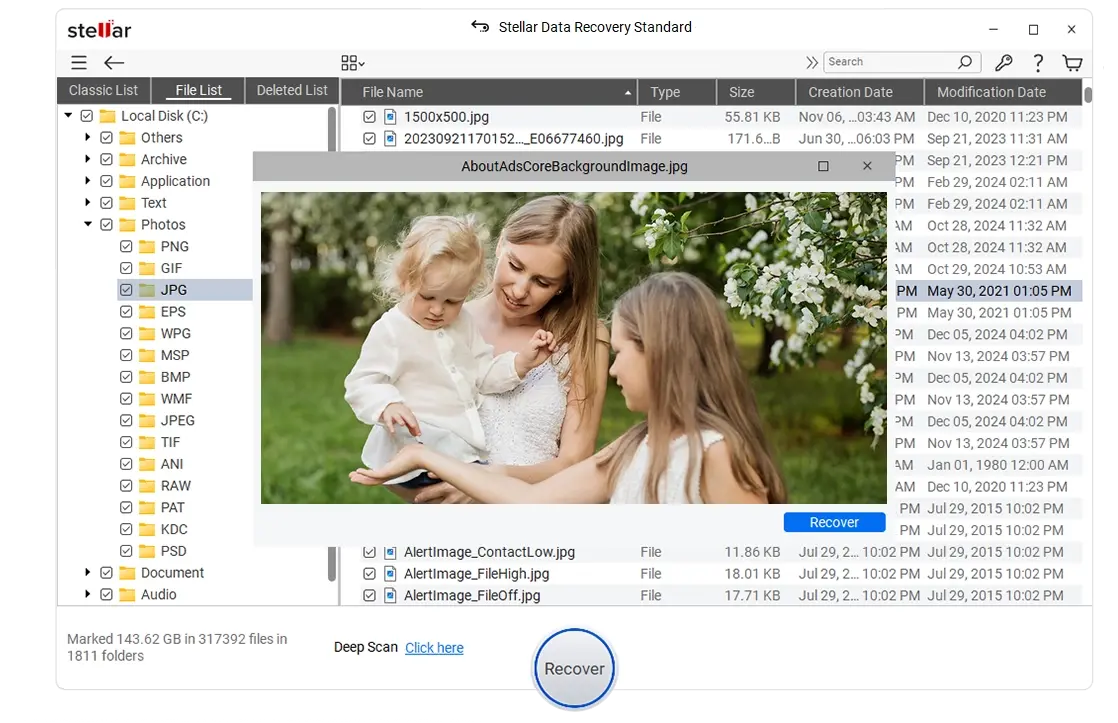
Step 5: Check the scanning results for the files that can be recovered to verify that they are still there.
Step 6: Mark the items you wish to restore and push 'Recover', but do not forget to store them on a different hard drive.
For detailed comparisons of recovery and backup options, you may want to explore alternatives like Advik software and Avast solutions.
How the stellar window data Recovery Process Works
The working of stellar windows data recovery tools is outlined as follows:
1. Installation with Precautions and Care:
During the software setup, do not place it on the same drive where your files were lost. This will protect the files from being overwritten. A different drive or a USB stick would be ideal for this.
2. Selecting the Appropriate Scan:
There are two scan options available to you:
- For the files that you have just removed, Quick Scan will work perfectly.
- Deep Scan gets much deeper into the disk making it suitable if the files were deleted a long time ago or after formatting the disk.
3. Sift and Narrow Down:
Stellar offers you the chance to preview the documents, pictures, or video files obtained through recovery before the files are returned to you. Also, for your convenience, the results can be organized according to the type of file, size, or date.
4. Recover and Verify:
Once you have selected the files you want to restore, save them in a new place rather than the original one where they were lost from. Then check each file to make sure that the files are functioning properly.
If you require business-grade recovery services in your region, consider contacting
Stellar Data Recovery in Gurugram, Haryana.
Comparing Stellar Window Data Recovery With Other Top Recovery Tools
Here are the comparison table of stellar window data recovery with other top and reputed recovery tools are mentioned below:
Software | Supported Systems | Free recovery Limit | Preview During Scan | Key Features | Rating |
Disk Drill | Windows, macOS | 500 MB | Yes | Partition Search, recovery vault, S.M.A.R.T | N/A |
Stellar Windows data recovery | Windows, macOS | 1 GB | Yes | Photo/video repair, drive imaging | N/A |
Recuva | Windows | Unlimited | Yes | Color-coded recovery chances | N/A |
EaseUS Data Recovery Wizard | Windows, macOS | 2 GB | Yes | Sort/filter deleted files | N/A |
For specialized email recovery, check tools like BitRecover New York or BitRecover Software in the UAE.
Pros and Cons of Stellar Windows Data Recovery
Some pros and cons of the reputed stellar windows data recovery tools are given below just check and learn more:
Pros | Cons |
Wide device support: HDDs, SSDs, USB drives, memory cards | Free version limited to 1GB recovery |
Built-in preview for photos, videos, and documents | Deep scan can be time-consuming on large drives |
Repairs corrupted photos and videos post-recovery | No auto-resume if scan is interrupted |
Byte-to-byte image creation for drive cloning | Pricing for professional licenses is on the higher side |
Need cloud backup? Discover the best cloud storage apps for continuous protection.
Bottom Lines
All in all, the ClipsTrust group found that data which has been lost is rarely really lost and that Stellar Windows Data Recovery is a very powerful and easy way to get back the lost data. File loss can be quite a daunting experience; however, if one uses Stellar at the right time, they can completely turn the situation around in no time.
Stellar is there to support you with quick and cutting-edge data restoration when files are just deleted by mistake or lost due to formatting and damage, thanks to the deep-scan, file preview, and fixing tools along with others.
The program is easy to use and works with different types of devices. The free version covers the basic needs with a 1 GB recovery limit, whereas professional users have the option to choose from the paid plans with more advanced features and higher recovery limits.
For comprehensive email and cloud data protection, also explore solutions like SysTools IMAP Backup, SysTools Zoho Backup, SysTools OLM Converter, SysTools Gmail Backup, SysTools MBOX Converter, and SysTools OST Converter.
FAQs
Q1. How long does it take to perform a deep scan?
The Deep Scan of a 1 TB HDD can take hours or even more depending on the size and condition of the drive, while the SSDs are usually faster.
Q2. Can Stellar recover files from formatted drives?
Yes. The Deep Scan can pull files back from both quick and full format events unless the data has been really overwritten.
Q3. Is it recommended to recover files to the same drive?
No. Always restore files to another drive or an external drive or storage to prevent overwriting the files you are trying to recover.
Q4. What are the file types that Stellar supports?
Stellar supports a wide range of documents (DOCX, PDF), images (JPG, PNG), videos (MP4, AVI), emails and many others.
Q5. Can it Fix Corrupt Photos and Videos?
Stellar has post-recovery corruption repair tools for both photos and videos among its features.