

Overview: Understanding MetaTrader Platforms and Forex Trading Fundamentals
Before diving into installation procedures, it's essential to grasp foundational concepts. What is forex trading? Forex trading involves the simultaneous buying of one currency and selling of another through a broker or trading platform. Currency pairs trading explained means understanding how two currencies are quoted together—for example, EUR/USD represents the euro against the US dollar.
Understanding forex pips is crucial before trading. A pip, or percentage in point, represents the smallest standard price movement in a currency pair—typically 0.0001 for major pairs. When you learn how to read forex quotes bid and ask, you'll notice the bid price (what brokers pay) always appears lower than the ask price (what you pay when buying).
MetaTrader 4: Installation on Windows PC
Step 1: Download MetaTrader 4 on Windows
Navigate to the official MetaTrader 4 website or your broker's platform. Click the download button specifically labeled "MetaTrader 4 for Windows." The installation file (mt4setup.exe) will begin downloading automatically. Ensure you download from official sources to avoid security risks. The file size is typically around 50-100MB, depending on your internet speed.
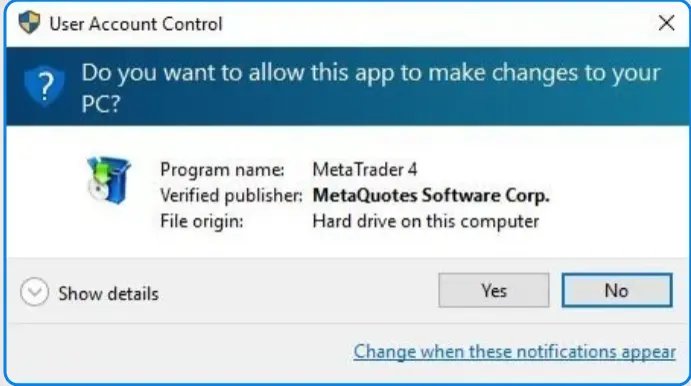
Step 2: Execute the Installation Wizard
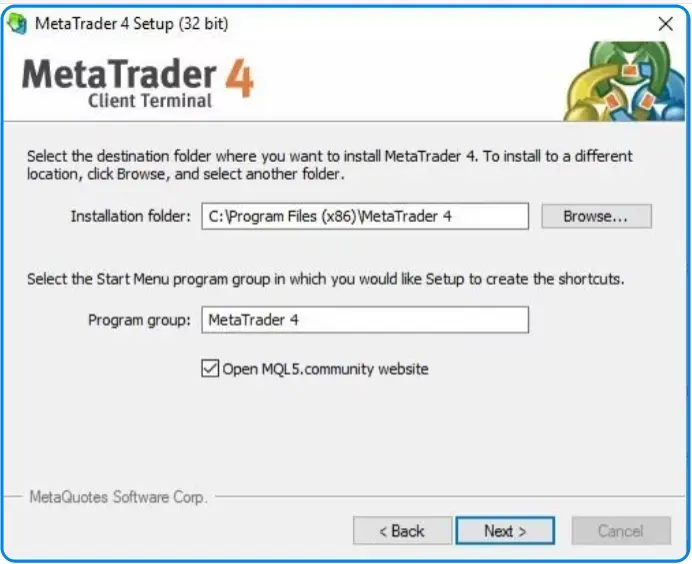
Locate the downloaded mt4setup.exe file in your Downloads folder. Double-click the file to launch the installation wizard. You'll see welcome screens and license agreement terms. The ClipsTrust research team recommends reading through the terms carefully before clicking "Agree" and proceeding. Select your installation location—the default "Program Files" folder works perfectly for most users.
Step 3: Complete the Setup Process
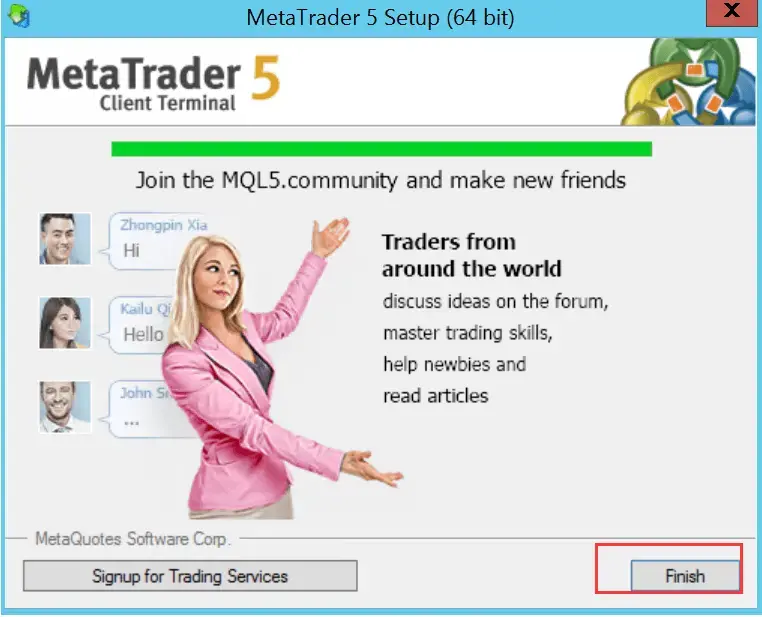
The installation process takes 2-5 minutes on standard connections. You don't need any special system requirements beyond Windows 7 or newer with at least 4GB RAM. Once installation finishes, click "Finish" to complete the setup. MetaTrader 4 will launch automatically upon completion.
Step 4: MetaTrader 4 Login with Broker Server
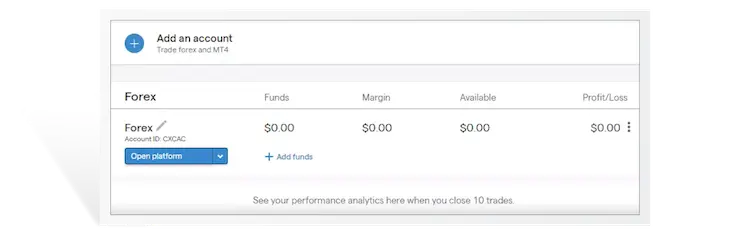
Upon first launch, you'll see a login window. This is where you connect broker account to MetaTrader 4. Enter your broker's server name, login ID, and password provided during account opening. The ClipsTrust team advises saving your password only on personal computers for security. Click "Login" to establish your connection.
How to Install MetaTrader 4 on Mac
Download MetaTrader 4 for Mac Process
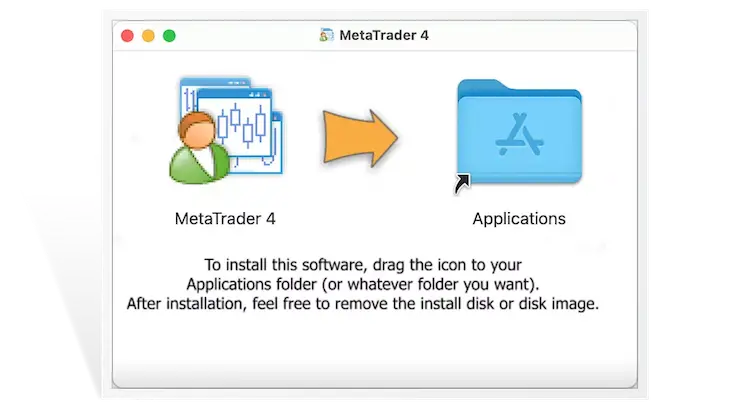
Mac users face a unique situation since MetaTrader 4 doesn't have a native Mac version. The solution is downloading a modified Mac-compatible version directly from your broker or the official MetaTrader website. Look for "MetaTrader 4 for MacOS" specifically. The file will be a .pkg installer file rather than an .exe file.
Setup MetaTrader 4 on Apple Computer
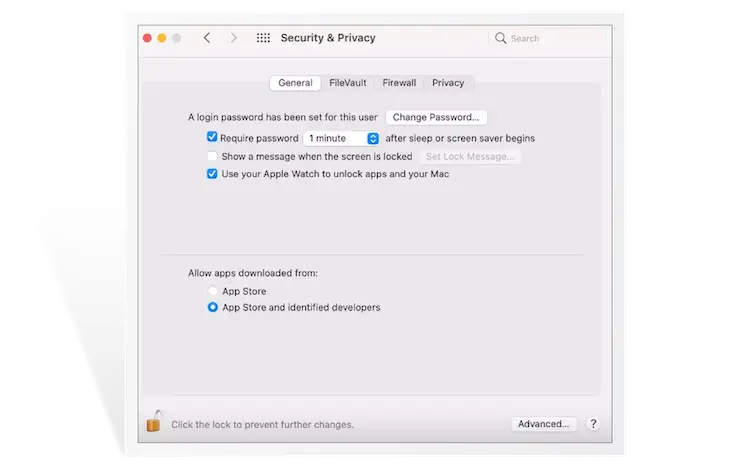
Double-click the downloaded .pkg file to launch the installer. You may receive a security warning stating "MetaTrader 4 can't be opened because it was not downloaded from the App Store." Click "Open Anyway" to proceed. Enter your Mac password when prompted. The MT4 installation for Windows computers differs from Mac, but the functionality remains identical once installed.
Alternative: Using Parallels Desktop or Wine
Advanced Mac users can run Windows-based MT4 through virtualization software like Parallels Desktop. This method provides full MT4 functionality but requires additional software installation. Download Parallels, create a Windows virtual machine, then install the Windows version of MetaTrader 4 within that environment.
How to Install MetaTrader 4 on Linux
Linux users can run MetaTrader 4 through Wine, a compatibility layer enabling Windows applications on Unix systems. Open Terminal and execute the command: sudo apt-get install wine-stable for Ubuntu systems. Download the mt4setup.exe file and run it with Wine using: wine mt4setup.exe. The installation proceeds similarly to Windows, with Wine handling the compatibility layer automatically.
How to Install MetaTrader 5 on Windows PC
MetaTrader 5 Download Setup Windows
MetaTrader 5 represents the modern evolution of trading platforms. Visit the official MetaTrader 5 website and click "Download MT5 for Windows." The installation file (mt5setup.exe) downloads automatically. MetaTrader 5 Windows setup requires the same minimal system requirements as MT4—Windows 7 or newer with 4GB RAM minimum.
.webp)
MetaTrader 5 Windows Setup Tutorial
Execute the downloaded mt5setup.exe file. The MT5 setup wizard tutorial follows an intuitive process: click "Continue," review the license agreement, click "Agree," then select your installation directory. The installation completes in 3-5 minutes. Upon finishing, MT5 launches automatically, ready for configuration.

How to Set Up MT5 Windows PC
After launching, MT5 displays the account login screen. Enter your broker's server, login credentials, and password. The ClipsTrust team recommends testing with a how to create MetaTrader 4 demo account first before connecting a live account. Demo accounts provide risk-free environments for learning platform functionality without financial exposure.
MetaTrader 5 Download Setup Mac OS
How to Install MetaTrader 5 on Mac
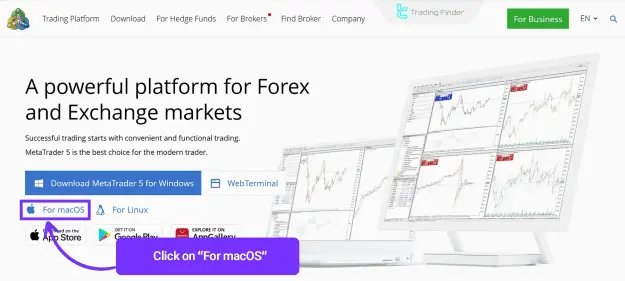
Like MT4, MetaTrader 5 offers a native Mac installer. Download MetaTrader 5 from the official website and select the "Download for Mac" option. The file arrives as metatrader5.pkg. Double-click to launch the installation. Accept security prompts and enter your Mac password as requested.
MT5 Setup macOS Tutorial
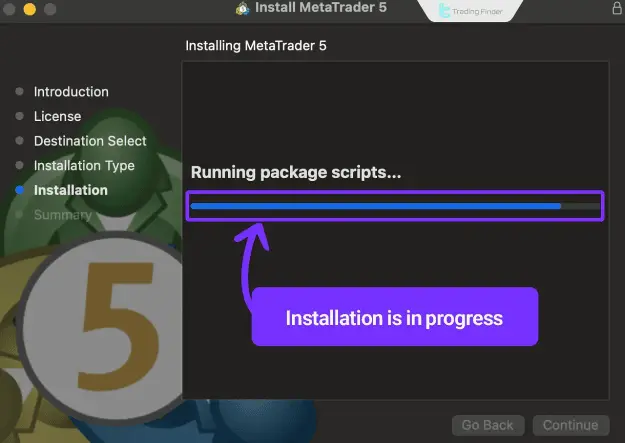
The installer guides you through setup automatically. Click "Continue," accept the license, then click "Install." The platform installs to your Applications folder. Launch by finding MetaTrader 5 in your Applications folder or Launchpad. The MT5 setup wizard tutorial displays automatically upon first launch, or you can skip directly to account login.
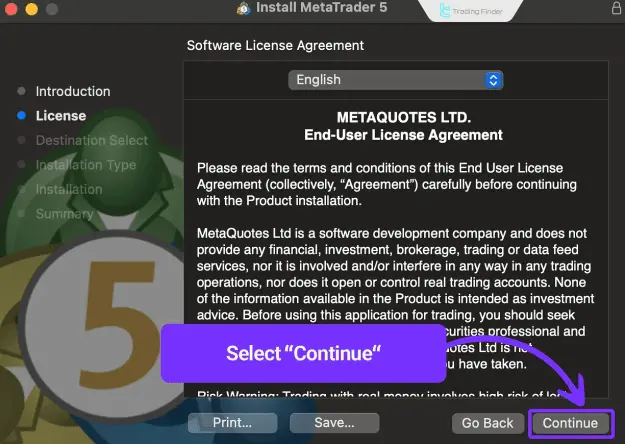
Setting Up MetaTrader 5 on Mac OS
Enter your broker's server information and login credentials. The ClipsTrust team emphasizes that MT5 Mac performance equals the Windows version despite different underlying architecture. All features, indicators, and trading functionality remain identical across platforms.
MetaTrader 5 Mobile App Installation Android iOS
Mobile MT5 Setup Tutorial for Beginners
Smartphone trading has revolutionized forex accessibility. For Android devices, open Google Play Store and search "MetaTrader 5." For iOS, visit the Apple App Store and search identically. Download the application by tapping "Install" or "Get." The application downloads and installs automatically—typically completing within 2-3 minutes depending on connection speed.
MetaTrader 5 Mobile App Installation Android iOS Detailed Process
After installation completes, open the MetaTrader 5 mobile application. The mobile MT5 setup tutorial begins by asking for your account type preference—Demo or Live. Select Demo initially for practice, entering the server name and demo credentials. For live trading accounts, enter your actual broker server, login ID, and password provided during account opening.
Key Mobile Features Available
The mobile MT5 setup tutorial reveals that MetaTrader 5 mobile app installation Android iOS provides virtually identical functionality to desktop versions. You can execute trades, analyze charts using technical indicators, set stop-loss and take-profit orders, and monitor real-time price quotes. The mobile platform supports both netting and hedging position systems, making it suitable for advanced traders.
MT4 Demo Account Setup and Practice Trading
How to Create MetaTrader 4 Demo Account
Before risking real capital, understanding forex leverage explained and forex margin level fundamentals requires practice. Most brokers offer demo accounts directly through their websites. Complete the registration form with personal information, select "Demo Account," and the broker provisions a practice account with virtual funds (typically $10,000–$100,000). Explore more to understand the types of forex trading acconts.
Forex Demo Account vs Live Account Comparison
The ClipsTrust research team identifies key differences between demo and live trading. Demo accounts use virtual funds with zero real financial risk, making them ideal for learning. Live accounts involve real money with actual profit and loss consequences. Demo accounts don't reflect real market slippage, liquidity constraints, or emotional trading psychology that live accounts expose traders to.
How to Choose a Forex Broker and Open Accounts
How to Choose a Forex Broker: Key Criteria
Selecting brokers requires evaluating regulation status, platform options, spread sizes, and customer support. Reputable brokers maintain licenses with regulatory bodies like the CFTC (Commodity Futures Trading Commission) or FCA (Financial Conduct Authority). Check whether your potential broker is regulated before depositing funds.
How to Open a Forex Trading Account Process
- Visit the website of the forex broker you want to use.
- Fill out the registration form with your personal details.
- Upload the required documents for identity and address verification (passport/driver's license, utility bill/bank statement).
- Complete the KYC (Know Your Customer) verification process.
- Add funds to your account and start trading.
Documents Required to Open Forex Account
Standard documentation includes government-issued photo ID, proof of residence dated within the last six months, and sometimes proof of income or financial standing.
Account Funding and Trading Initiation
Minimum Deposit for Forex Trading Explained
Minimum deposit for forex trading varies dramatically by broker and account type. Micro accounts may require as little as $50–$100, while standard accounts typically demand $1,000–$5,000 minimum. Some ECN brokers set minimums at $10,000 or higher.
How to Fund Forex Trading Account: Payment Methods
How to fund forex trading account options typically include bank transfers, credit/debit cards, e-wallets (PayPal, Skrill), and cryptocurrency for some brokers. Processing times vary from instant (card payments) to 3-5 business days (bank transfers). Most brokers charge no funding fees, though some payment methods incur small transaction costs.
Copy Trading and Islamic Accounts
Copy Trading Account for Beginners Explained
Copy trading allows beginners to automatically replicate trades from experienced traders. Select a successful trader from your broker's copy trading section, allocate funds toward copying their trades, and the platform automatically executes identical trades on your account proportional to your allocated capital.
Islamic Forex Accounts: Halal Trading Explained
Islamic forex accounts, designed for Muslim traders following Sharia law principles, eliminate overnight swap fees (interest) that make conventional accounts haram. These swap-free accounts accommodate the Islamic prohibition against riba (interest) while maintaining full trading functionality.
MetaTrader 4 vs MetaTrader 5 Feature Comparison
| Feature | MetaTrader 4 | MetaTrader 5 |
|---|---|---|
| Primary Use | Forex Trading | Multi-asset (Forex, Stocks, Futures) |
| Timeframes | 9 timeframes | 21 timeframes |
| Built-in Indicators | 30 indicators | 38+ indicators |
| Order Types | 4 pending order types | 6 pending order types |
| Programming Language | MQL4 | MQL5 (Object-oriented) |
| Position Systems | Netting only | Netting & Hedging |
| Market Depth (DOM) | Not available | Available |
| Back-testing Speed | Standard | Multi-threaded (faster) |
| Mobile Apps | iOS & Android | iOS & Android |
| Asset Classes | Limited | Comprehensive |
| Regulatory Support | Widely supported | Growing adoption |
| Learning Curve | Beginner-friendly | Moderate |
To learn more about this topic, chek out our case study on mt 4 vs mt 5 diference.
Installation Requirements and Specifications
| Platform | Operating System | Minimum RAM | Disk Space | Internet Speed | Installation Time |
|---|---|---|---|---|---|
| MT4 Windows | Windows 7+ | 4GB | 200MB | Broadband | 3-5 minutes |
| MT4 Mac | macOS 10.x+ | 4GB | 200MB | Broadband | 5-10 minutes |
| MT4 Linux | Ubuntu/Debian | 4GB | 250MB | Broadband | 5-10 minutes |
| MT5 Windows | Windows 7+ | 4GB | 250MB | Broadband | 3-5 minutes |
| MT5 Mac | macOS 10.x+ | 4GB | 250MB | Broadband | 5-10 minutes |
| MT5 Mobile (iOS) | iOS 12+ | 1GB available | 150MB | 4G/WiFi | 2-3 minutes |
| MT5 Mobile (Android) | Android 5.0+ | 1GB available | 150MB | 4G/WiFi | 2-3 minutes |
Frequently Asked Questions
Conclusion
The ClipsTrust research team emphasizes that successful forex trading begins with proper platform setup and foundational knowledge. Installing MetaTrader 4 or 5 represents the technical starting point, but understanding what is forex trading, currency pairs trading explained, and forex leverage explained comprises the educational foundation. Beginning traders should prioritize demo trading experiences, gradually learning how to read forex quotes bid and ask while mastering risk management through appropriate position sizing and stop-loss placement.
Leave a Comment